Turn Your Event's Live Photo Wall Into Sponsor Revenue
Introduction
A live photo wall is one of the most magnetic things you can put in a room. Guests capture moments on their phones, those photos land on the big screen within seconds, and the whole crowd keeps looking up to see who is on next. It builds energy, encourages participation, and turns passive attendees into active contributors.
But at a conference, an exhibition, a festival, or a concert, a live feed that only shows guest photos is leaving value on the table. That same screen is the most-watched surface in the venue. It can thank a sponsor. It can announce that the keynote starts in ten minutes. It can show the set times, the floor plan, or the after-party location. The question is no longer can you display photos in real time — it is who is steering that screen, and what else can it do.
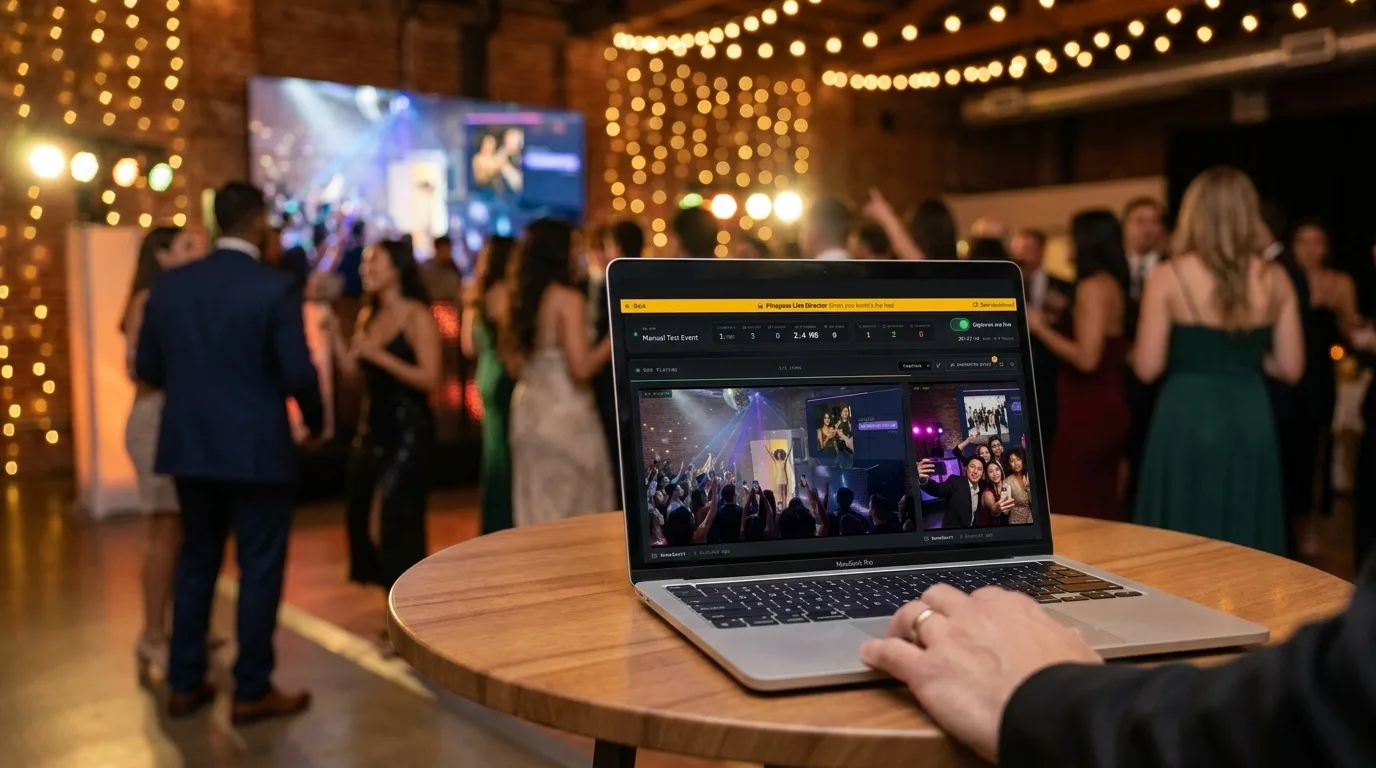
That is exactly what the Pinapose Live Director console is for. From a single page in your dashboard — "Direct the live feed" — you control everything your audience sees while your booth is live: when promo slides appear, what announcements go out, which screen shows what, and how fast the photos flow. This guide walks through every capability and makes the case for why it matters at large, public, and commercial events.
Meet the Live Director Console
The Live Director console is a real-time control room for your booth's live feed. While guests snap and share from their phones, you open the console on a laptop or tablet and direct the show as it happens. Nothing requires a page refresh — slides, announcements, stats, and screen controls all update live.
The console is organized into clear sections: Promo slides for branded content, Notifications for announcements, Now playing for steering individual screens, a Guest capture switch for pacing the room, and a live stats strip so you always know what is happening. An "On Air" indicator confirms the booth is live and your changes are reaching the floor.
Crucially, the console is for the people running the show. Event owners, members of the owning team, and a verified delegated customer can direct the feed. Moderators — who review photos but do not run the event — cannot. That separation keeps control in the right hands at a busy event.
Promo Slides: Blend Branded Content Into the Live Feed
The headline feature is promo slides — branded images or short videos that you weave directly into the photo stream. Instead of guest photos and your commercial messages competing for two different screens, they share the same one.
Uploading is simple. Drop in PNG, JPEG, or WebP images, or MP4 and WebM videos (up to 16 MB each, videos ten seconds or less, up to ten files per upload). You can reorder slides by dragging them, and give each one a polished look with a background color and a shadow style — none, soft, hard, or glow — so a logo or a poster sits cleanly on screen rather than looking pasted on.
The clever part is promo cadence. Rather than hijacking the feed, a slide is interleaved with guest photos at a frequency you set: "one promo every n guest captures," adjustable from 1 to 50 (the default is 15). A high number keeps the feed mostly social with the occasional brand moment; a low number pushes your message harder. And when you want a slide on screen right now — a sponsor just took the stage, a flash offer just opened — the Show next button puts it up at the next slot, no waiting for the counter.
This is where the commercial argument writes itself:
- Sponsor and exhibitor logos rotate through the most-watched screen at the venue, delivering the on-screen exposure sponsors pay for — and giving you something concrete to sell into your sponsorship tiers.
- Merch, drinks, and upsells at a concert or festival ("Tonight's tour shirt — €30 at the merch tent") reach the crowd while they are already in a buying mood.
- Schedule cards, maps, and house rules double as practical wayfinding between photos, so the screen earns its keep even in quiet moments.
But the real opportunity is simpler: promo slides turn your live feed into a revenue stream. The wall is the most-watched surface in the venue, and every slot in the rotation is inventory you can sell. Package slide slots into your sponsorship tiers — a logo in the loop for a bronze sponsor, a full-screen brand video and a higher cadence for a headline partner, a timed "now serving" slide for a food vendor. Because you control the cadence and can fire any slide with Show next, you can deliver — and prove — exactly what each sponsor paid for: guaranteed appearances, prime moments (the keynote, the headline act, the toast), and on-screen exposure in front of the entire room. For many organizers, the sponsorship revenue a single event's slide slots can command more than covers the cost of running the booth — the live feed pays for itself, and then some.
A live photo wall that also carries your sponsors and your offers is no longer just decoration — it is inventory.
Live Announcements: Reach Every Guest, in Their Language
The console's Notifications section turns the live feed into a broadcast channel. Compose a short message (up to 240 characters), choose how it goes out, and dispatch it across the venue in seconds.
You decide where each message lands. Show it on the wall, send it to guests' phones, or do both at once — the two channels are independent, so you can match the message to the moment. A live-feed card displays your message full-screen on the photo wall at the next rotation slot, so it never cuts off a photo mid-display. An in-app message pops up as a banner inside every connected guest's booth app — and, crucially, it does not vanish when the banner fades. Each message is saved to the guest's in-app inbox, so it stays on their own device for the rest of the event: anyone who glanced away, arrived late, or wants to re-check a gate change or a discount code can open the inbox and read it again whenever they need it. A wall card commands the room in the moment; an in-app message follows each guest in their pocket — use one, the other, or both.
Because Pinapose serves a multilingual audience, announcements are multi-language by design. You write your message in your dashboard language, then optionally add translations across the supported languages — English, Greek, French, German, Italian, and Hebrew. Each guest receives the message in the language their app is set to, and if a translation is missing, they get your original version as a fallback. Nobody is left staring at text they cannot read.
Every dispatch is logged in a notification history, where you can Reuse a message (re-send it, choosing the channels again), Show next to put it back on the wall instantly, or Delete it — which pulls it from the live feed and every guest's inbox. Announcements are available while the booth is live; before it opens or after it closes, the composer is paused with a clear explanation.
The organizational value at large events is hard to overstate:
- Run the schedule from the screen. "Doors close in 10 minutes." "Keynote starting now in Hall B." "Headliner on the main stage at 21:00." The information lands where everyone is already looking.
- Handle logistics and safety calmly. Gate changes, weather holds, lost-and-found, shuttle reminders, last call — pushed to every phone and screen at once, in the languages your crowd actually speaks.
- Drive commercial moments. A timed flash sale, a sponsor giveaway, a "scan to enter the prize draw" prompt — broadcast at the exact moment it will convert.
For conferences and festivals juggling hundreds or thousands of attendees across multiple spaces, this is a public-address system you already own, built into the screen people are happy to watch.
Now Playing: Direct Every Screen in the Room
Bigger events rarely have one screen. There is a stage display, a screen by the bar, a wall in the lobby. The Now playing panel lets you direct each one individually.
Every screen showing the live feed appears in the console the moment it comes online. You can name them — "Stage screen," "Lobby," "Sponsor wall" — so you always know which is which, and you see a live count of how many are connected. Pick one, and you get full transport control: see what is On screen and what is Up next, jump to the Previous or Next item, or Skip something for the current rotation. If a screen has not come online yet, the console tells you exactly how to start projecting — open the live feed in a new tab — so setup is never a mystery.
If your booth uses moderation, the queue is right here too: a shield button surfaces pending photos so you can approve or reject them inline, keeping the wall clean without leaving the console. That matters enormously at public events where you cannot vet who walks in but you can absolutely vet what reaches the screen behind your stage or sponsor logo.
Guest Capture Control: Pace the Room
Sometimes you want the feed full of photos, and sometimes you do not. The Guest capture switch lets you pause new guest uploads instantly — and resume them just as fast — with a confirmation step so it is never an accidental flip.
This is the tool for pacing. Warm the feed up before doors open so the wall is never empty when the first guests arrive, then open captures for the crowd. Pause during a solemn moment, a keynote, or a performance where phones-up is not the vibe, and reopen for the party afterward. If something needs a hard stop, you have an emergency brake.
Two details make it safe to use mid-event: moderators are never affected — they keep capturing and approving as usual — and any upload already in flight when you pause will still complete. Guests simply see a friendly note that captures are paused for now, while everything else in their app keeps working.
Live-Feed Bubbles and Real-Time Stats: Keep the Energy Visible
Two finishing touches keep the room engaged and keep you informed.
Live-feed bubbles are the YouTube-Live-style avatars that rise along the edge of the screen each time a guest posts — a small, lively signal that the wall is active and others are joining in. You can switch them on or off and choose which side of the screen they appear on, so they complement your layout rather than crowd it.
The console's live stats strip gives you the room at a glance, updating in real time: contributors, photos, videos, and storage used, plus moderation counts — queued, accepted, rejected — when moderation is on. You can spot a lull and fire off an announcement to re-energize the crowd, or watch participation climb after you put a sponsor's prize draw on the wall. It is event analytics you can act on during the event, not just review afterward.
Built for Conferences, Festivals, and Concerts
Everything above compounds when the event is large, public, or commercial. Here is the case, by occasion.
Conferences and Trade Shows
A conference runs on schedule and sponsorship, and the Live Director console serves both. Promo slides give exhibitors and sponsors guaranteed exposure on the main screen — a tangible benefit to package into your sponsorship tiers. Announcements keep hundreds of attendees flowing between sessions and halls without a single hoarse organizer. Moderation keeps the feed boardroom-appropriate. And the live photo wall itself draws traffic to your booth or main stage, because people gather where they can see themselves on screen.
Festivals and Outdoor Events
Festivals are sprawling, multi-stage, multi-language, and unpredictable. The console becomes your nerve center: broadcast set times and stage changes to every phone at once, push safety and weather updates in the languages your international crowd speaks, and rotate food-vendor, merch, and sponsor slides through screens across the grounds. The capture switch lets you pace the energy across a long day, and live-feed bubbles keep the wall feeling like a shared, buzzing space.
Concerts and Live Shows
At a concert, the screen is part of the production. Warm the feed before doors, pause captures during the moments that demand full attention, and reopen for the encore and the after-party. Drop a "tonight's merch" slide between fan photos, run a sponsor's brand spot at the right beat, and let live-feed bubbles ripple as the crowd posts — turning the audience into part of the show. One person on the console directs the whole visual rhythm of the room.
Galas, Weddings, and Brand Activations
The same playbook elevates fundraisers and brand experiences: sponsor and donor recognition on the wall, elegant announcements that replace a microphone, moderation for a formal crowd, and a curated stream that partners are proud to be associated with.
Who Can Direct the Feed — and How to Start
Directing the live feed is reserved for the people responsible for the event: the booth owner, members of the owning team, and a verified delegated customer. Moderators have their own focused role and do not get console access. So you can confidently hand the console to a colleague at the desk while moderators work the queue and guests enjoy the show — everyone in their lane.
Getting started takes minutes. Create your booth on Pinapose, open it on event day, and open "Direct the live feed" from your dashboard. Upload a few promo slides, draft your first announcements, project the live feed onto your screens, and you are running the room from one page.
A live photo wall pulls a crowd. A directed live feed puts that crowd to work — for your message, your sponsors, and a smoother event. Start with Pinapose and take the director's seat.
At a Glance: Everything the Console Does
- Promo slides — Weave branded images and short videos into the photo stream, on the same screen guests are already watching.
- Sponsor monetization — Sell rotation slots as sponsorship inventory; the live feed becomes a revenue line that can pay for the booth.
- Promo cadence — Set how often a promo appears between guest photos (1–50), tuning the balance of social and commercial.
- Show next — Put any slide or announcement on screen instantly, for the keynote, the headline act, or a flash offer.
- Slide appearance — Give each slide a background color and a shadow style (none, soft, hard, glow) so logos and posters sit cleanly.
- Live announcements — Broadcast a short message across the venue in seconds, on the wall and/or to guests' phones.
- Multi-language messages — Send in English, Greek, French, German, Italian, and Hebrew, with automatic fallback to your language.
- Persistent in-app inbox — In-app messages stay on each guest's device to re-read all event long, not just while the banner shows.
- Notification history — Reuse, re-show, or delete any past announcement at any time.
- Now playing — Name each screen and steer it: see what's on screen and up next, jump previous or next, or skip an item.
- Inline moderation queue — Approve or reject pending photos without leaving the console (when moderation is on).
- Guest capture toggle — Pause and resume guest uploads instantly to pace the room; moderators keep capturing throughout.
- Live-feed bubbles — Rising guest avatars signal the wall is alive, with on/off and side settings.
- Real-time stats — Watch contributors, photos, videos, storage, and moderation counts update live to act in the moment.
- Role-based access — Owners, team members, and verified delegated customers can direct the feed; moderators cannot.