
Content Moderation for Events: Keeping Your Photo Stream Appropriate
Introduction
A live photo feed is one of the most engaging features you can offer at any event. Guests capture candid moments, group shots, and behind-the-scenes snapshots that appear instantly on a shared screen or digital album. It creates energy, encourages participation, and gives everyone a reason to pick up their phone.
But with open participation comes a risk: not every photo that gets uploaded belongs on your big screen. Whether it is an accidental screenshot, an inappropriate joke, or simply an unflattering shot that someone would rather not broadcast, unmoderated content can derail an otherwise well-run event.
Content moderation gives you control over what appears on the live feed without slowing down the guest experience. This guide covers why moderation matters, when to use it, and how to set it up with Pinapose so your photo stream stays clean, on-brand, and appropriate for your audience.
The Risks of Unmoderated Content
When every photo goes straight to the live feed, you are trusting every guest to exercise good judgment. That works well at small private gatherings, but the calculus changes at larger or more formal events.
Brand and Reputation Damage
At open events like concerts, festivals, and product launches, you often have little control over who walks in the door. Guests are largely anonymous, and the live photo feed is part of your public-facing presentation. A single inappropriate image on the screen behind your stage or sponsor wall can undermine hours of careful planning. When you cannot vet your audience, you need to vet their uploads.
Legal and Compliance Concerns
School events, conferences with minors present, and government functions often carry explicit content policies. Displaying user-generated content without review may violate those policies, even if the content is only visible for a few seconds before someone notices and removes it.
Guest Comfort
Not every inappropriate photo is offensive. Sometimes guests upload photos of other attendees who would prefer not to be on display. A moderation step gives you the opportunity to respect everyone's comfort level, especially at events where attendance is mandatory rather than voluntary.
How Pinapose Handles Moderation
Pinapose gives you two layers of content control that work together.
Pre-Approval (Optional)
When you enable moderation on your event, photos and videos are uploaded but remain invisible on the live feed until a moderator explicitly approves them. Nothing reaches the screen without human review. The trade-off is a brief delay between when a guest takes a photo and when it appears, but in practice this is measured in seconds, not minutes.
Post-Removal (Always Available)
Every event, whether moderated or not, gives organizers the ability to remove photos after the fact through the event album. From your dashboard, navigate to the event album and delete any content that should not be there. Deleting a photo removes it from both the album and the live feed immediately. This serves as a safety net for unmoderated events and a second line of defense for moderated ones.
When to Enable Moderation
Not every event needs moderation. A birthday party with close friends probably does not. But several common scenarios make it worth enabling:
Corporate Events
Company retreats, product launches, holiday parties, and team-building activities all carry brand expectations. Moderation ensures the photo feed reflects the professional image you want to project.
Public Gatherings
Festivals, community events, and open-door celebrations attract diverse crowds. When you cannot predict who will be in the room or what they will upload, moderation provides a safety net.
School and Family Functions
Events involving children, such as school dances, graduations, or family reunions, benefit from an extra layer of review. Parents and administrators expect that content displayed publicly has been vetted.
Sponsored or Branded Experiences
If a sponsor's logo appears alongside the photo feed, that sponsor has a stake in what content accompanies their branding. Moderation lets you deliver a curated experience that partners can trust.
How Pinapose Moderation Works
Pinapose uses a queue-based pre-approval system. Guests upload photos and videos as usual, but instead of appearing on the live feed immediately, each item enters a moderation queue. Moderators review items one by one and decide what goes live. Here is how to set it up and use it.
Enable Moderation When Creating Your Event
During event creation, you will find a Moderation toggle. Enable it, and all uploaded media will be routed through the moderation queue instead of going directly to the live feed. This setting must be configured before the event starts.
Add Your Moderators
From the event detail page on the dashboard, navigate to the Moderators tab. You can add up to three moderators per event by entering their name and email address. Each photo can only be approved or rejected once — the fastest moderator to act wins, and the item disappears from the other moderators' queues automatically. Three moderators is a deliberate limit that keeps the team focused and ensures each person feels personal responsibility for the queue.
Send Invitations
Once you have added moderators, send them invitations directly from the dashboard. Each moderator receives a personalized email with the event details, including the event name, start time, and venue, along with a sign-in link that takes them straight to the moderation interface. You can send invitations individually or invite all moderators at once with a single click.
The dashboard also shows you each moderator's sign-in status so you can confirm they are ready before the event starts.
How Moderators Sign In
Moderators use the same app as guests — there is no separate tool to install. They sign in using the email address to which their invitation was sent, and an extra Moderation option appears in their menu. This works seamlessly even for events that allow anonymous guest access. While regular guests can enter without authentication, moderators always sign in with their email to verify their identity before accessing the moderation tools. Moderators can use any device: smartphone, tablet, or laptop.
The Moderation Queue
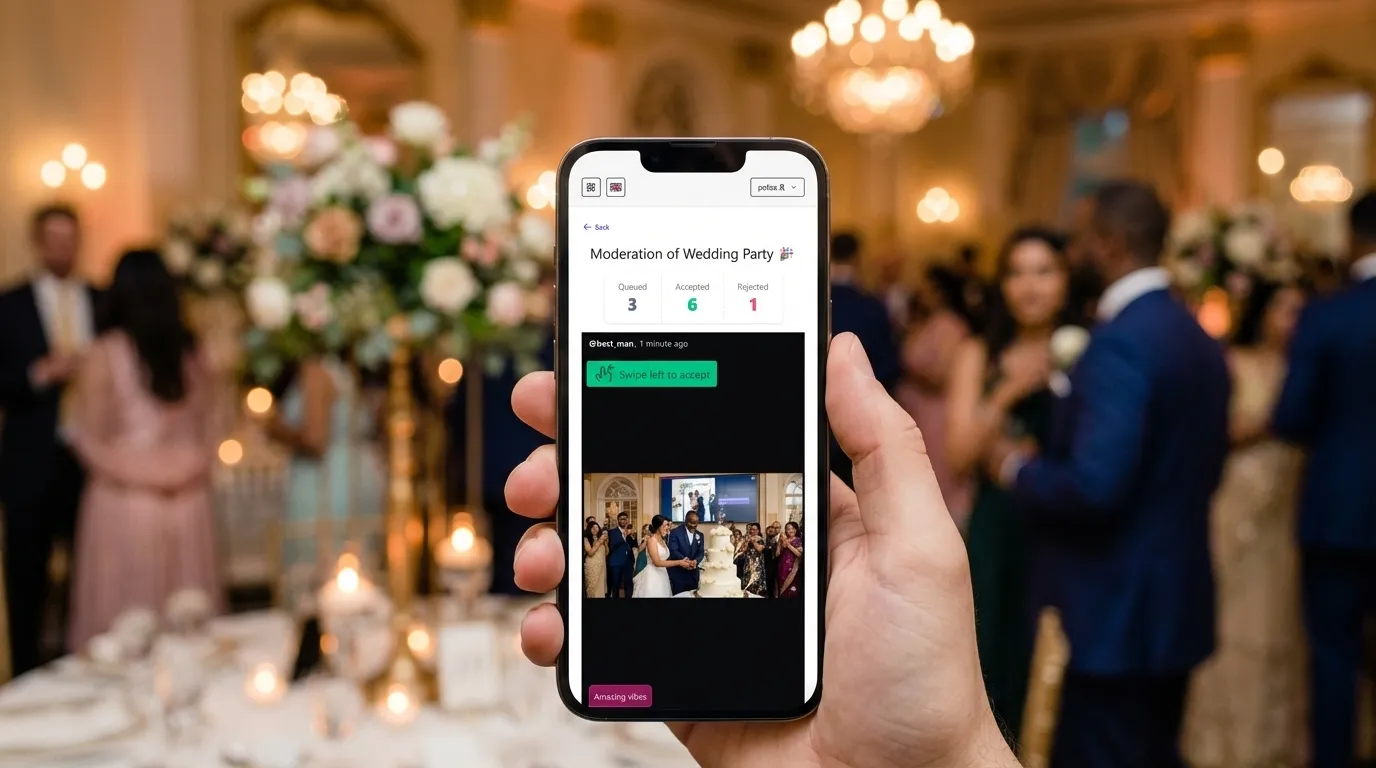
The moderation interface is designed for speed. Moderators see one photo or video at a time, displayed on their device, along with the guest's nickname and comment if one was added. The interaction is simple: swipe left to approve, swipe right to reject. After each decision, the next item loads automatically.
A stats bar at the top of the screen shows three numbers in real time: how many items are queued, how many have been accepted, and how many have been rejected. This gives moderators instant awareness of their progress and the overall pace of uploads.
Automatic Reminders
If the moderation queue starts building up, Pinapose sends email reminders to moderators automatically. These alerts fire every five minutes while the event is live and items remain pending. The reminders include the number of waiting items and a direct link back to the moderation screen, so a moderator who stepped away can jump back in quickly.
Guests See Their Moderation Status
Guests are not left wondering what happened to their photos. On the capture screen, each photo thumbnail displays a colored number indicator: green for accepted, red for rejected, and neutral for still queued. This transparency keeps guests informed without requiring them to ask anyone, and it sets the expectation that moderation is active.
Moderation Verdicts Are Final
Once a moderator approves or rejects a photo, the decision cannot be reversed through the moderation queue. If a photo was accepted by mistake, the remedy is to delete it from the event album on the dashboard — this removes it from both the album and the live feed. If a photo was rejected, it simply does not appear on the live feed. However, nothing is lost: organizers can see all photos on the album page during or after the event, including their moderation status, so you always have the full picture of what was captured.
Moderators Can Be Guests Too
Moderators are not locked out of the guest experience. They can switch between the photo capture screen and the moderation queue at any time using the menu. This means you can assign moderation duties to someone who is already attending the event, like a team lead at a corporate retreat or a parent volunteer at a school dance. They can enjoy the event and keep an eye on the queue.
Balancing Moderation Speed with Guest Experience
The primary concern with pre-approval moderation is delay. Guests want to see their photos on the big screen, and a long wait diminishes the excitement. Here are practical ways to keep the queue moving.
Assign Enough Moderators
For events with fewer than 50 guests, one moderator is usually sufficient. For 50 to 200 guests, two moderators provide comfortable coverage. For larger events or events with high photo activity, use all three moderator slots. Remember that moderators can also be guests, so assigning the role does not pull anyone away from the event itself.
Keep Moderators on Their Devices
The most common cause of a backed-up queue is not volume but availability. A moderator who puts their phone away for twenty minutes during dinner creates a backlog. Pinapose helps here with the five-minute email reminders, but setting expectations upfront is even better.
Approve Quickly, Reject Carefully
Most photos at most events are perfectly fine. Encourage moderators to develop a rhythm: if a photo looks normal, approve it immediately. Only slow down for photos that genuinely need a second look. Speed of approval is what keeps the guest experience feeling responsive.
Best Practices for Moderator Briefing
A quick briefing before the event starts can make the difference between smooth moderation and hesitant decision-making.
Define What to Reject
Give moderators a short, specific list. For example: no photos of branded competitor products, no photos where someone is visibly intoxicated, no screenshots or memes. Specific guidelines are easier to apply than vague instructions like "use your judgment."
Set a Response Time Expectation
Tell moderators how quickly you expect items to be reviewed. A reasonable target is within two minutes of upload during active event hours. This gives guests a near-instant experience while allowing moderators to participate in the event.
Designate a Lead Moderator
If you have multiple moderators, designate one as the point of contact for borderline decisions. This avoids conflicting judgment calls and gives the other moderators someone to consult when they are unsure.
Brief on the Audience
Remind moderators who will be in the room. An event with senior executives has different standards than a casual team outing. Knowing the audience helps moderators make faster, more confident decisions.
Set Up Your Moderated Event
Content moderation is the difference between hoping for the best and knowing that every photo on your live feed has been reviewed by someone you trust. It protects your event, respects your guests, and gives you confidence that the photo stream enhances your event rather than risking it.
Ready to run a moderated photo booth? Create your event on Pinapose and enable moderation in the setup flow. Add your moderators, send them their invitations, and let the photos roll in — only the ones you want on the big screen.